Project Walkthrough
I was taking an AI video bootcamp and the technical vocabulary was relentless. Shot types. Lighting setups. Realism triggers. Camera angles. Midjourney parameters. There was no way I was going to remember all of this unless I was a full-time cinematographer doing it every day.
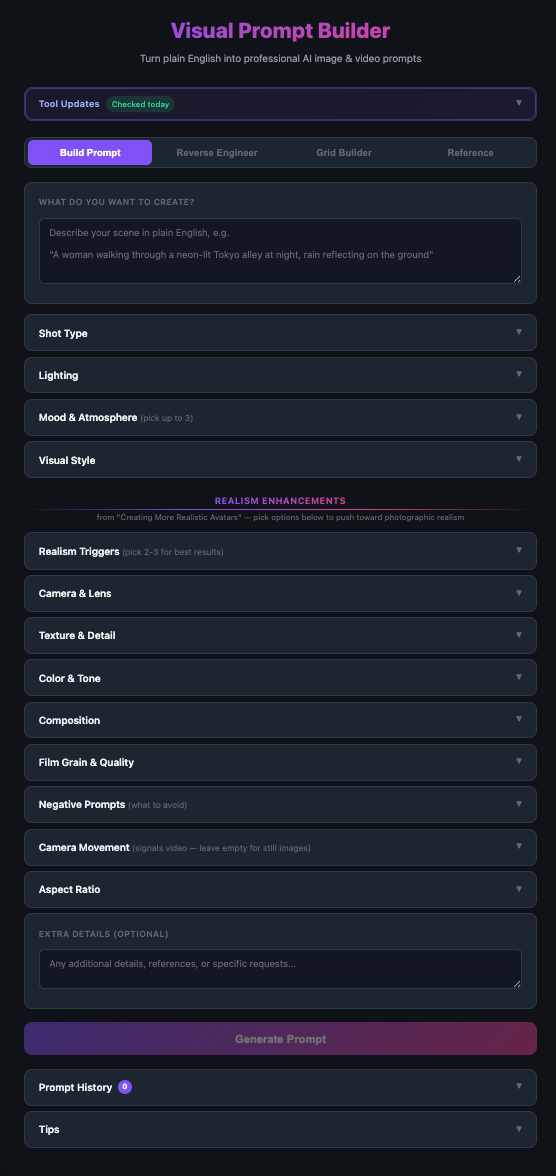
So I built a tool that does two things at once: gives me a place to store everything I was learning, and turns all of it into a structured prompt generator so I never have to memorize the terminology again. Plain English in. Professional AI image prompt out.
Every parameter category in one place. Expand what you need, leave the rest collapsed.
Tab 1
Each one holds an entire category of professional vocabulary. Far more than anyone could hold in their head...
…
Click Generate and Gemini assembles everything into a structured prompt ready to paste into Midjourney, DALL-E, Kling, Veo 3, Higgsfield, or Gemini.
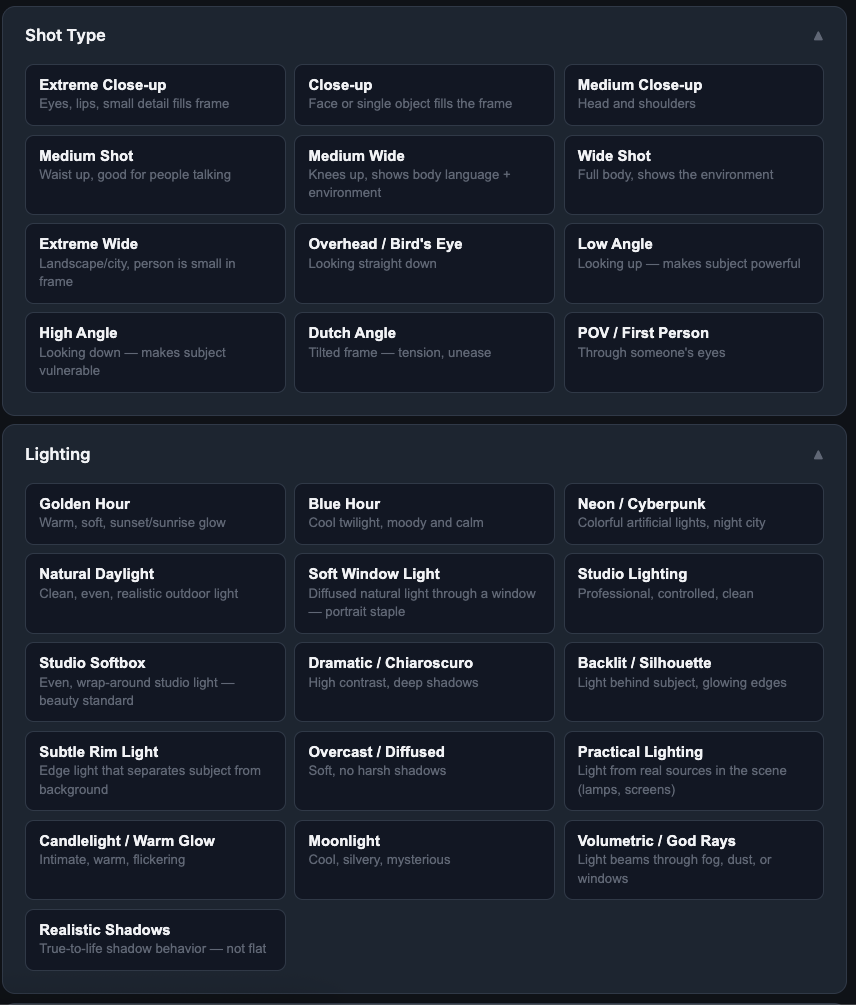
Expand any section to read the plain-English description of what each option does. Click to enlarge.
The learning was built in
This is the part that made it a learning tool, not just a utility. Every option has a plain-English description of what it actually does to an image. Click any tile to select it. The label tells you what it is. The description tells you what it does.
I was learning what these terms meant by using the tool. The bootcamp was teaching the vocabulary. The tool was storing it and making it immediately usable at the same time.
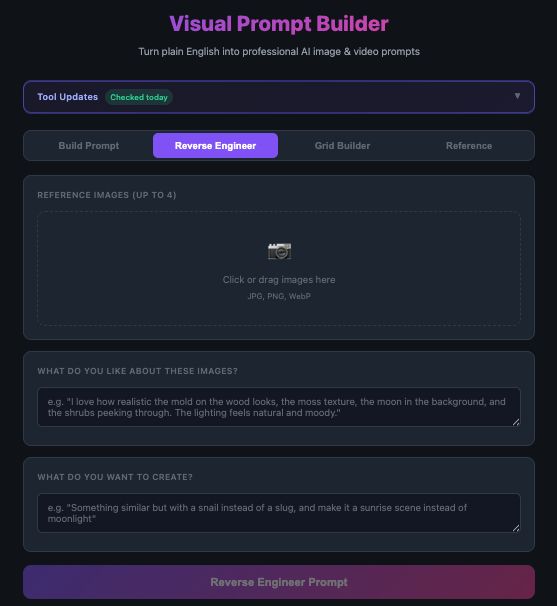
Upload up to four reference images and describe what you like. Gemini builds a prompt to recreate that look.
Tab 2
Find an image that has exactly the look you want but you have no idea how to describe it in a prompt. Upload it here and let Gemini figure out the vocabulary.
Upload up to four reference images. Describe what you like about them - "the mold texture on the wood, the moody moonlight, the way the shadows fall." Say what you want to create. Gemini analyzes the visuals and builds a prompt that recreates that look for your subject.
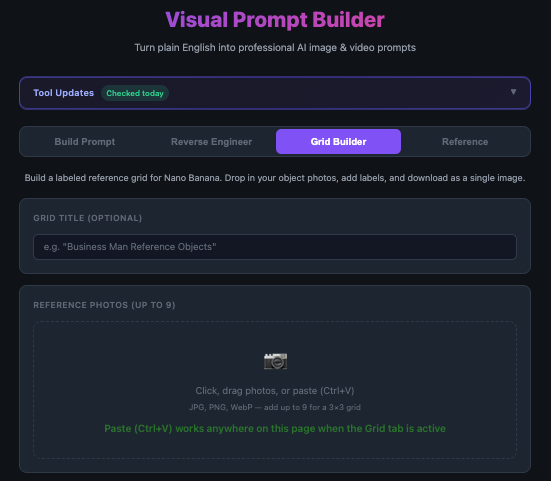
Drop in object photos, add labels, download as a single reference grid image.
Tab 3
Nano Banana is an AI video tool that needs a labeled reference grid of your objects before it can work with them. This tab is a dedicated builder for exactly that.
Drop in up to nine photos, add labels, and it assembles them into a clean 3x3 grid image you can download and drop straight into Nano Banana. A small tool solving a specific problem that kept coming up in the bootcamp workflow.
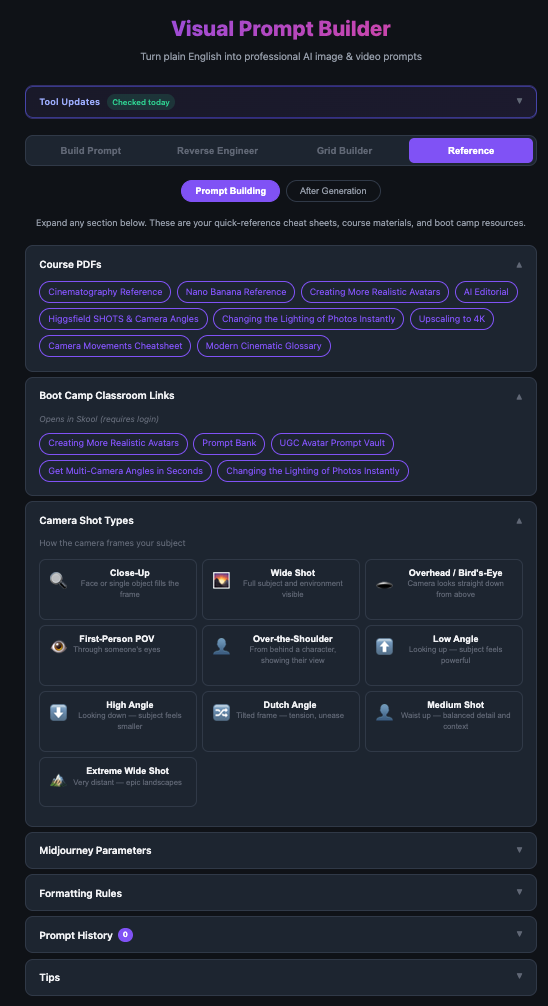
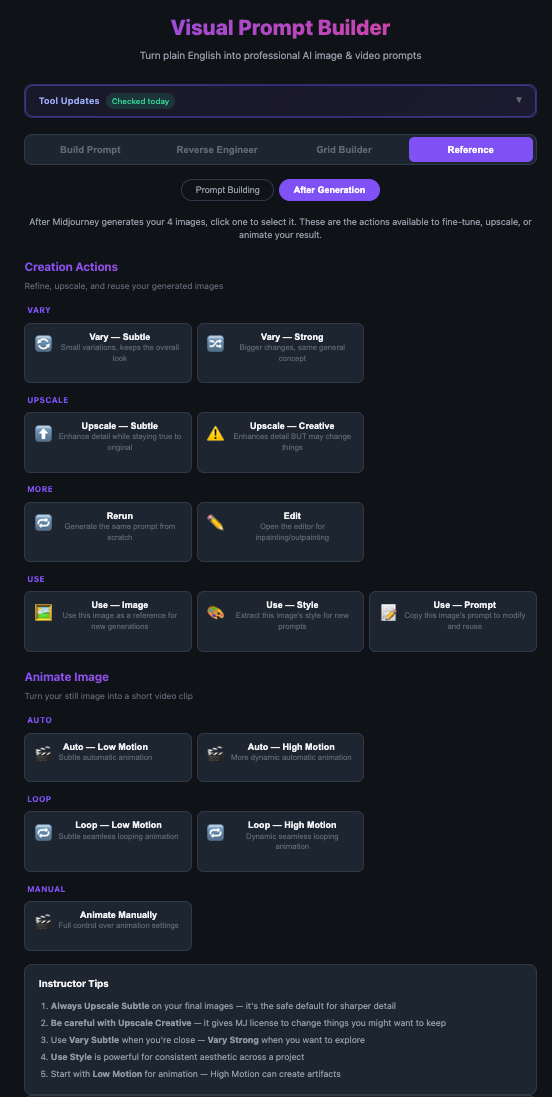
Prompt Building reference (left) and After Generation cheat sheet (right). Click either to enlarge.
Tab 4
This is the storage half of the tool. Everything I was learning in the bootcamp went here. As I worked through each section of the course, I turned it into a PDF and saved it directly inside the app - so the reference material and the tool that uses it live in the same place.
The bootcamp content is inside the tool now. I didn't store it in a notebook I'd never open again. I don't have to log back into the course and hunt for where something was. Everything I learned is right here, inside the thing I use to apply it.
A year ago I would have built a custom GPT for this. I used to build GPTs for everything. Any course I took, any system I was learning, anything I wanted to be able to ask questions about later. Now I build apps.